
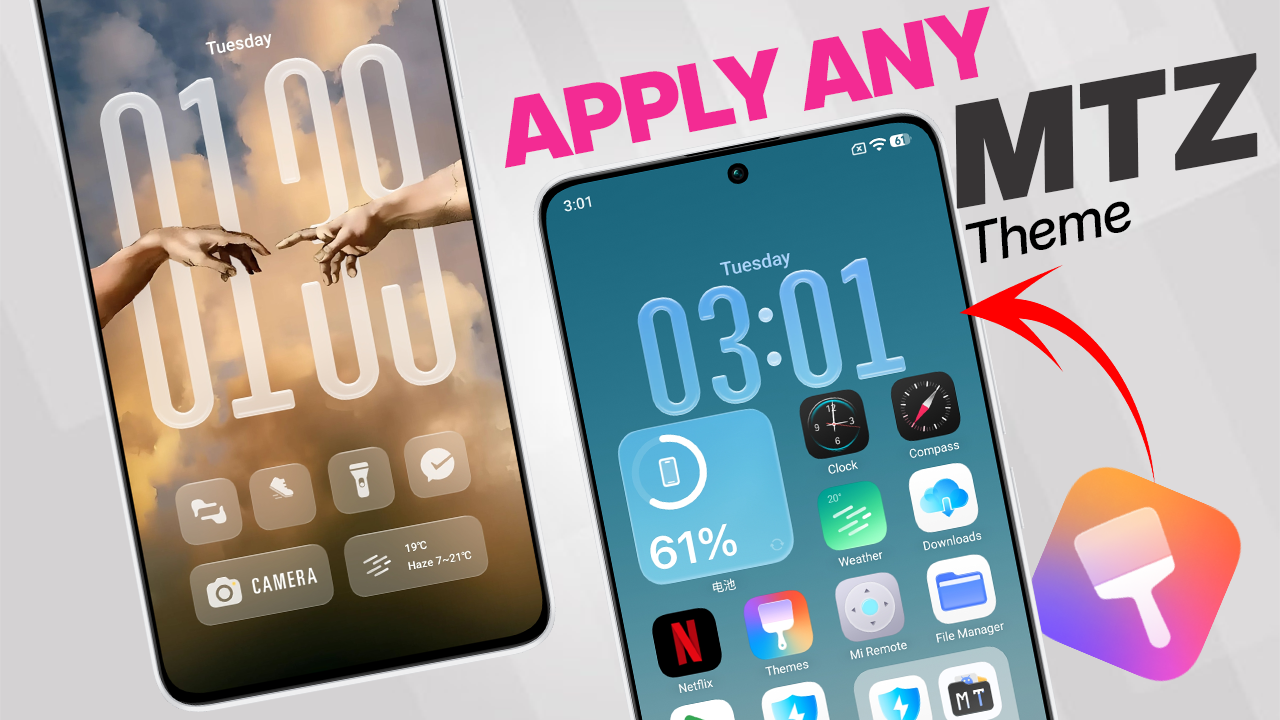
Good news for customization lovers! It’s now possible to install permanent MTZ themes on any Xiaomi, Redmi, or POCO smartphone, regardless of whether you’re running HyperOS 1, HyperOS 2, or HyperOS 3. This method works even if the official theme store blocks certain styles, giving you full control over your device’s look.
In this guide, I’ll walk you through the process of applying. MTZ themes permanently. This method completely bypasses the standard Theme Store restrictions, giving you total control over your phone’s aesthetic.
To make this magic happen, you need two specific applications working together. One tests the theme file, and the other ensures it stays applied to the system.
1. MTZ Tester (Available on Play Store) This app is used to browse and select your downloaded .mtz theme files. [Download MTZ Tester here]
2. Hyper Theme (Sideload Required) This is the powerhouse app that forces the theme to stay permanently. It is not available on the Play Store, so you need to download the APK from one of the sources below: [Download from Here]
For this method to work—and for your theme not to disappear after 10 minutes—you must grant the “Hyper Theme” app deep system access.
Without these permissions, HyperOS will see the app as a background drain and kill its process, causing your theme to revert.
You must go into your device settings for the Hyper Theme app and enable these three things:
-
Accessibility Permissions: Allow the app to control screen elements.
-
Allow Restricted Settings: You may need to permit the app to change system-level configurations.
-
Disable Battery Optimization (Remove restrictions): Set the app’s battery saver strategy to “No restrictions” so the system doesn’t put it to sleep.
How to Apply Your MTZ Theme Permanently
Once you have your apps installed and permissions granted, the process is simple:
-
Download the .MTZ theme file you wish to use to your phone storage.
-
Open the MTZ Tester application.
-
Use the app’s file picker to select the .MTZ file you downloaded.
-
Click the “Apply” button within MTZ Tester.
That’s it! Because you set up Hyper Theme correctly in the previous steps, the theme will now be applied permanently to your device. Enjoy your newly customized HyperOS experience!